
27 Mar 2017: see User-Friendly Excel Exports, part 6 for an updated approach.
Many end users appreciate FileMaker’s ability to export a found set of records in Excel format — it’s fast, straight-forward and empowering. One request that I have received from clients multiple times over the years is: make the exported field names in the top row of the spreadsheet “human-friendly”…
For example, instead of this:

…perhaps they would rather see this:

Another request has been to allow data from multiple source fields to be combined into single export columns, as per columns A and C here:

And a third request has been to provide an interface so that users can pick and choose fields to export, including (where appropriate) related fields, without having to navigate the complexity of the native FileMaker export dialog.
A while back I decided to do something about these requests, and today’s demo file, excel exports, part 1, is the approach I came up with at that time.

(In subequent articles we’ll look at extending and/or streamlining the approach, but today we’re going to start out simple.)
To recap, clients have requested three things:
- User-friendly column headings
- Calculated fields or the virtual equivalent (I call these pseudo-fields)
- An interface to make it easy
Well, with regard to number 1, I have no intention of changing my geeky field names, e.g, “name_first”, to something as warm and fuzzy as “First Name”; and, with regard to number 2, I would prefer not to define a bunch of new fields in the database just so they can, for example, have City, State and Zip in a single spreadsheet column.
The question is: can I have my way, and still give them what they want? And the answer is a qualified yes, if I’m willing to invest some time and effort.
Confession: I haven’t found a way to get the “user-friendly” column names in the top row of the spreadsheet to appear in bold. But perhaps you, dear reader, know a method and are willing to share, e.g., exporting as XML and transforming via XSLT?
The approach used in today’s demo file is…
A. Populate a $$sessionKey variable at startup (helps ensure multi-user friendliness):

B. Create and populate a translation table, called “aliases”, with two fields:
1. Input — will contain “user friendly” column names
2. Output — will contain “translation code” for each input entry

C. Base a value list on the Input entries.

D. Define global fields in Contacts, and provide an interface for the user to populate them from the above value list; each global will correspond to a column to be exported.

E. Create separate relationships from each global field to the alias input field.

F. In the Contact table, define a separate calculated field (unstored, text) corresponding to each global field… the calculation will reach across the relationships defined in step E and use the Evaluate function to translate the “input” into the “output”.

G. Create a utility table called “excel”, which will serve as a clearing house — as per the script in step H, records will first be imported into it, and then exported out of it.

H. Define an “Export to Excel” script along the lines of the following (this is an excerpt; see the demo for the full version).
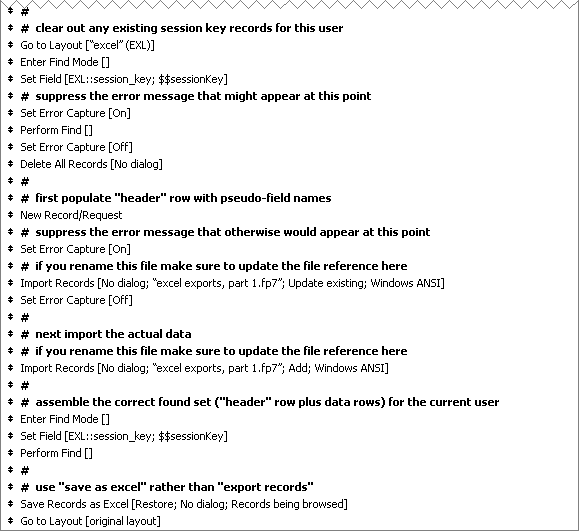
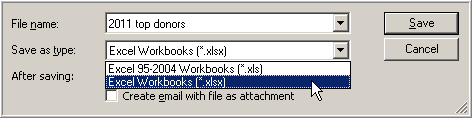
The script uses “save as excel” rather than “export records” as a convenience. When you use “save as excel”, FileMaker automatically exports all fields on the active layout… and of course the user is not presented with a plethora of file type options when the “Save As Excel…” dialog appears, but instead sees this simple set of choices:
And, finally, here’s what the actual output looks like:

In upcoming articles we’ll look at expanding this approach to handle multiple source tables, and also reducing clutter on the Relationships Graph.
Excellent feature! We have this one in our backlog and might be implementing it soon. Can’t wait for the 2nd installment and I will try to work the demo file and post results/comments here.
Thanks JR — one thing I like about this technique that I forgot to mention in the article is that if the end-user is somewhat FM savvy, you can give them access to the aliases layout, so they can create their own entries.
excellent article as usual.
As you started to mention issues with exporting is if the user wish to use a related field – and uses “Export As Excel” – filemaker will include the children data, with in the export leaving blanks for the parent data fields.
Where as Save As Excel only considers the values on the record or the first value across the relationship.
Thanks Stephen… I hadn’t even considered that. This is what I love about having a blog… how much I learn in the process.
Kev, I don’t know if you’ve ever tried, this, but virtual list layouts will export directly to Excel and look just like what you see in FM.
So if you build an array of VL fields, each becomes a column in Excel. I’ve done a cross-tab report with sub-summaries and totals all built into the variables for the VL, and once exported to Excel, all that is preserved, including blank lines, labels, etc.
The best part is that VLs don’t impact the RG at all, unless you’re gathering related data, and often you can use existing relationships to do that. In my cross-tab, I was totaling summary data for a range of months, with months on the horizontal axis, and companies on the vertical.
And of course, your choice of data to put in each column with the friendly labels will work just fine in a VL.
Thanks Lynn… Virtual List is definitely on my agenda for “part 3” or “part 4” of this series.
Can i say Mr. Frank
That the frequency of your posts are admirable and i believe i am learning so much from you and just want to personally thank you for your contributions to the FMP community.
: )
-ian
This looks like what I need, but it terrifies me. Trouble is, my exported fields come from 2 different tables, so some headings show as ‘Client:FirstName’ etc.
Is this approach going to help me? I swear I will work through it and try to understand, but if it only works for single table exports, I really can’t afford to spend the time!
Just a hint? Thanks so much. You have shown me how very, very little I know about Filemaker!
It definitely works with multiple tables, as you will see in part 3.
I’ve used Applescript in the past to format excel exports from FM (and even to calculate URLs in excel from FM data for UPS and FedEx shipments).
That way, the whole excel dictionary is available for formatting, bolding, column width, etc..
I was looking for a more native FM way to do it (and enable my Win based colleagues) and your method may do it, thanks.
Kevin,
This is a great solution, and thanks for sharing it. However, I have run into a problem. I have a data-separated solution, and I’m finding that, having isolated the found set of records for export, when it comes to importing the data into the utility ‘excel’ table, ALL records are imported, and not just those in the found set. Maybe I’m missing something, but, apart from the data separation, I’ve set it up as in your demo, so I’m a bit puzzled.
If you have any suggestions, I’d really be grateful!
Dave.
Hi Dave,
Thanks for your comment. For the import, are you specifying the UI file for the source table? Because what you describe sounds like what would happen if you mistakenly specify the DATA file as the source in a separated solution. The found set is in the UI file, so that needs to be the source file for the import.
Hope this helps,
Kevin
Kevin,
That’s exactly what I did! How stupid – shall I blame the Christmas break and too much food and drink?? Thanks so much. I can now look forward to the future instalments of this technique, which will be just what I need.
Thanks again,
Dave.
You’re welcome. Glad we got it resolved.
Hi Kevin,
Your technique (using Virtual List, as explained in later parts) is brilliant, and has been in successful use in our solution for a while now. One question though – because we delete the session-specific records from the utility table at the start of the script (and not at the end), they don’t get deleted on the last (or only) run in a session. This has led to quite an accumulation of records, and I wondered if there’s a reason not to delete them at the end?
Dave.
Hi Dave,
Obviously I’m not familiar with the particulars of your situation. I would say you are welcome to delete records any time you are absolutely certain it’s safe to do so.
E.g., at startup, if Get ( UserCount ) = 1, it should be safe to delete all records from the “excel” table.
Regards,
Kevin
Two additional thoughts…
1. For additional safety considerations before executing a “Delete All Records” step, see “Tip #10: Trap for missing layouts” here: https://filemakerhacks.com/2015/12/28/tips-n-tricks-part-2/
2. Starting in FM 15 you can use the new “Truncate Table” step as an alternative… it’s typically faster, and, if you specify the table name, does not require that you first establish table context by going to a layout…
https://fmhelp.filemaker.com/help/15/fmp/en/#page/FMP_Help%2Ftruncate-table.html
But in either case I would test for Get ( UserCount ) = 1 before proceeding.
Hello Kevin,
Thanks for getting back to me so promptly. I’ve put the delete immediately after ‘Save records as Excel…’ in your script extract above. It seems to me that, once the save to Excel has been done, the utility records are no longer needed, and we already have the found set that we need to delete – but I’m a little worried that I’ve missed a point, although it seems to work fine.
I take your point about safety. I’m not using FM15 yet, but ‘Truncate table’ sounds useful.
Thanks again,
Dave.